Docker
Docker is a tool used to build, deploy, run, update, and manage containerized applications.
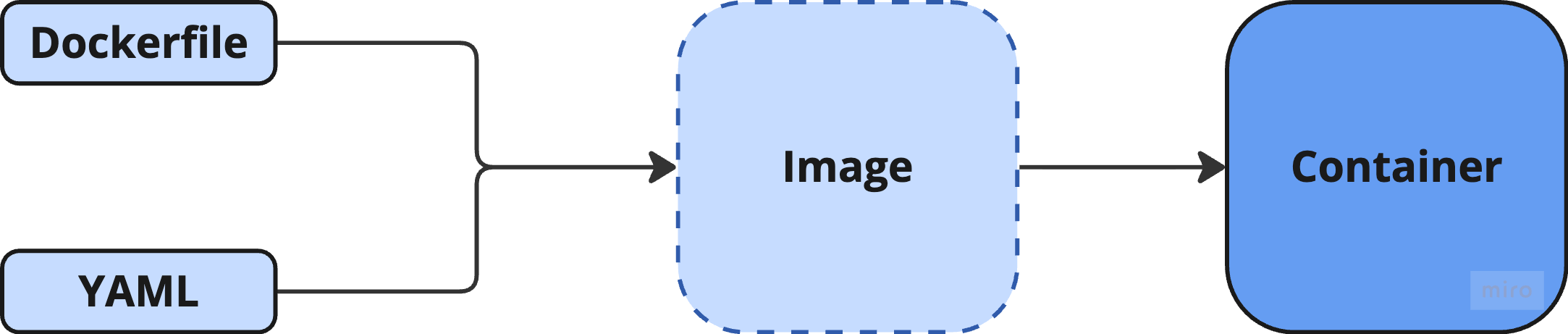
Dockerfiles
A Dockerfile is a text-based document containing instructions for building a Docker image. It acts as a blueprint or recipe, defining the steps and commands required to create a self-contained, runnable environment for an application.
Creating a Dockerfile

touch Dockerfile# syntax=docker/dockerfile:1
FROM node:lts-alpine
WORKDIR /app
COPY . .
RUN yarn install --production
CMD ["node", "src/index.js"]
EXPOSE 3000Components of a Dockerfile
-
FROM- Specifies the base image that the Docker image will be built upon. Choose a suitable base image that provides the necessary operating system and any pre-installed software your application needs. -
WORKDIR- Sets the working directory inside the container for any subsequentRUN,CMD,ENTRYPOINT,COPY, orADDcommands. -
COPY- Copies files or directories from the host machine into the container's filesystem. -
RUN- Executes commands in a new layer on top of the current image and commits the results. Use it to install required packages or dependencies. -
ENTRYPOINT- Configures a container that will run as an executable. It is used when you want the container to always run a command, andCMDprovides arguments to that command. -
CMD- Provides default arguments for anENTRYPOINTor executes a command if noENTRYPOINTis defined. -
EXPOSE- Informs Docker that the container listens on the specified network at runtime.
Note: node:lts-alpine is a base image that comes with Node.js and the Yarn package manager pre-installed. It copies all of the source code into the image, installs the necessary dependencies, and starts the application.
Images
An image is a packaged, built artifact created from the Dockerfile. Images must contain everything needed to run an application - all dependencies, configurations, scripts, binaries etc. Images also contain other configurations for the container, such as environment variables, a default command to run, and other metadata.
Building a Docker Image
docker build -t getting-started . Note: docker build uses the Dockerfile to build a new image. After Docker downloaded the image, the instructions from the Dockerfile copied in your application and used yarn to install your application's dependencies. The CMD directive specifies the default command to run when starting a container from this image. The -t flag tags your image. Think of this as a human-readable name for the final image. getting-started is the name of the image and can be referred to when you run a container. The . at the end tells Docker that it should look for the Dockerfile in the current directory.
Common Docker Images
docker run -it --name my-alpine alpine shdocker run -it --name my-ubuntu ubuntu:latest bashdocker run -it --name my-python python pythondocker run -it --name my-node node nodedocker run -it --name my-postgres postgres psql -U usernamedocker run -it --name my-redis redisdocker run -it --name my-mysql mysqldocker run -it --name my-nginx nginxdocker run -it --name my-busybox busyboxdocker run -it --name my-memcached memchachedContainers
A container is an isolated environment where code can run, and is a runnable instance of a Docker image. Containers will run until they are manually stopped.
Creating a Container
This creates a new container from an image.
docker run -it ubuntu:latest bash

docker run -it --name my-ubuntu ubuntu:latest bash
Note: -it connects your terminal directly to the inside of the Docker container so you can interact with it in real time.
Starting a Container
This resumes an existing, stopped container.
docker start 98f05ff85c76

docker start my-ubuntu
Seeing All Running Containers
docker ps # see all running containers

docker ps -a # see all containers
Note: ps stands for "process status."
Executing a Container
This executes a container.
docker exec -it 98f05ff85c76 python

docker exec -it my-ubuntu bash
Copying Files To/From Containers
Copying from a Container
docker cp test-alpine:/app ~/DesktopCopying to a Container
docker cp /path/to/local/file.txt container_name:/path/inside/container/Stopping a Container
docker stop 4a9ba21ab079

docker stop my-ubuntu
Note: You can specify the CONTAINER ID or the NAME to stop the container.
Removing a Container
docker rm 4a9ba21ab079

docker rm my-ubuntu
Volumes
A volume is a way to persistently store data outside of containers.